
- Check prerequisites (room + table plan)
- Choose the automation mode
- Define table capacities and table combinations
- Save settings and use them operationally
Step by step
1) Check prerequisites
-
You have already created rooms with table plans and tables under Settings > Rooms.
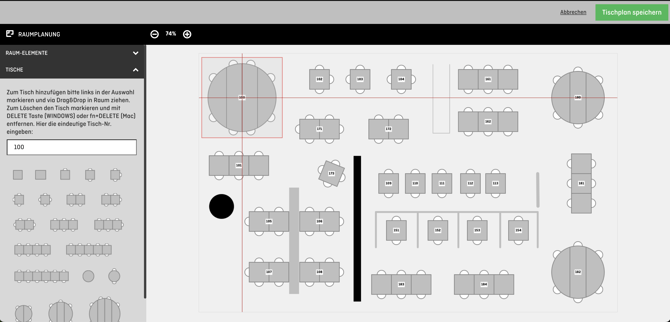
-
One or more rooms are active in the shifts:
Settings > Shifts > Select shift > Rooms. (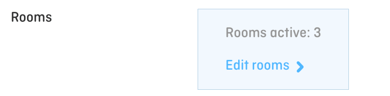
2) Choose the automation mode
-
Open Settings
-
Go to General → Automatic table assignment
-
Select the automation mode
(for automatic table assignment: Mode 2 or 3)
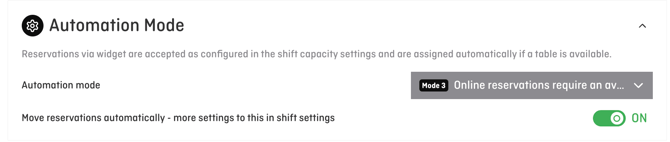
ℹ️ Note / Short explanation of the modes:
-
Mode 1: You continue to assign tables to reservations manually. The system supports you with table suggestions. (Screenshot)
-
Mode 2: The system assigns tables to reservations automatically, if available. Online availability in the booking widget is calculated solely based on the configured capacities in the shift settings.
-
Mode 3: The system assigns tables to reservations automatically. In addition to the configured capacities, the actually available tables are also used to calculate online availability.
💡 Tip: Want to learn more about the different modes? Find the full guide about the automation mode here.
💡 Tip: If you want to start gently, begin with Mode 1 (table suggestions in seatIn) and switch to Mode 2 or 3 later.
3) Define table capacities & table combinations
-
Open “Table combinations & capacities”
-
Click + Create new
-
Define (as needed):
-
Table capacity (e.g. Table 12: 2–4 guests)
-
Table combination (e.g. Table 10 + 11: 5–6 guests)
-
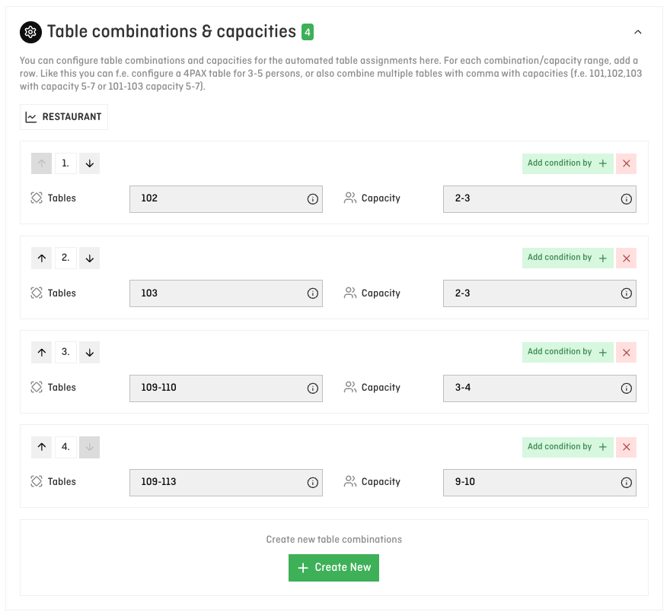
💡 Tip: For getting started, we recommend configuring the basic table capacities and the most commonly used combinations once. Conditions (e.g. time windows) are only needed if you actively use them.
⚠️ Important:
-
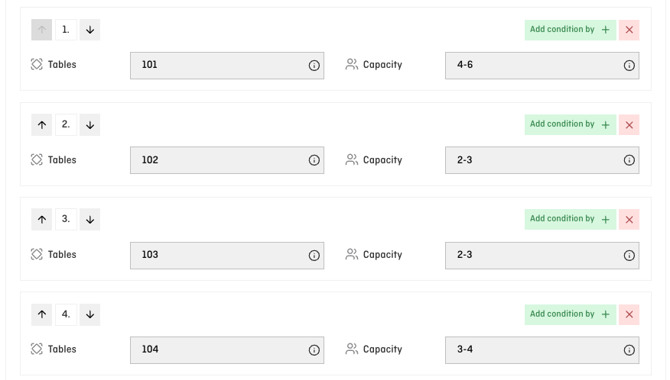
Each table capacity requires its own individual row.
-
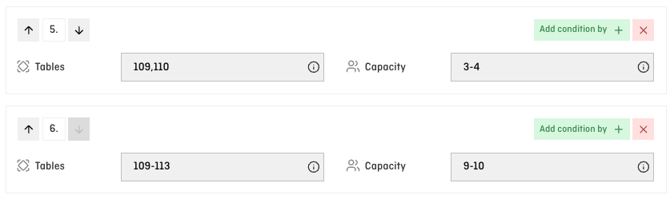
Table combinations can be entered using commas (e.g. Tables 1,2,5) or hyphens for ranges (e.g. Table 1–4).
What happens if you don’t configure anything?
In this case, automatic table assignment uses two input sources:
-
Table plan logic: A table with 4 seats is used for 4-person reservations (but not for 3-person reservations).
-
Learning logic: The system learns from manual table assignments. If a 3-person reservation has previously been placed at a 4-seat table, this will also be considered for future automatic assignments.
4) Save
-
Click “Save” in the top right corner (after making changes).
Outlook: What else is possible with automatic table assignment
Once the basic configuration is in place, you can further develop automatic table assignment — tailored to your occupancy, guest structure, and operational needs.
Typical next steps in practice:
-
Occupancy management: Release tables and combinations depending on time of day, weekday, or proximity to the reservation time
(e.g. large tables only at high occupancy or shortly before the shift starts also for smaller groups). -
Intelligent re-planning: Automatically move existing reservations to make room for additional bookings — without manual effort.
-
Guest management: Prioritise specific tables for VIPs, regular guests, families, or special occasions.
-
Operational flexibility: Short-term adjustments per shift or day
(e.g. weather-related reallocation from terrace to indoor seating).
These topics are covered step by step in the following articles: