
Overview
-
Provisional reservations in combination with group requests and mode 3
-
Provisional reservations in combination with a waitlist and mode 3
Provisional reservations without a free table give you additional flexibility when online reservations are already fully booked.
They allow you to deliberately accept further requests and decide later if and how these can be placed.
How provisional reservations without a table work
This feature is especially relevant when working with Mode 3.
In this mode, online reservations generally require a suitable free table.
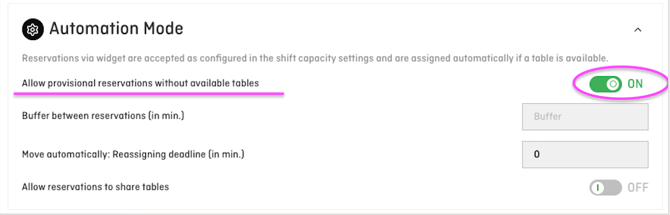
With the option “Allow provisional reservations without a free table”, you can still accept additional requests even if no table is currently available or the online capacity has already been reached.
These reservations are not confirmed automatically but are handled as provisional.
You can later actively confirm or decline them in aleno.
Step by step: Allow provisional reservations without available tables per shift
-
Open Settings > Shifts
-
Select the desired shift
-
Scroll to the Automatic Table Assignment section
-
Activate “Allow provisional reservations without a free table” in the automation mode section
-
Save the shift settings
This setting applies only to the selected shift.
Provisional reservations in combination with group requests and mode 3
Provisional reservations without a table are particularly useful when working with group requests.
For larger groups, it is often not immediately clear if and how they can be placed.
By accepting the request provisionally, you can capture it, review it internally, and decide later—without blocking a table too early.
Interaction with online capacity and buffer and mode 3
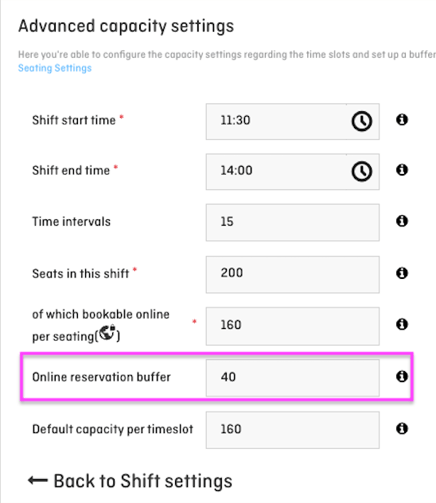
Provisional reservations without a free table should also be enabled for a shift when you use a buffer in the advanced capacity settings.
⚠️ Note on the buffer
The buffer defines an additional capacity in number of guests who can still submit a provisional request via the widget, even after the online capacity has been exhausted.
-
When working with Mode 3, the option “Allow provisional reservations without a free table” must be enabled.
-
The buffer refers to the field “of which bookable online per seating” in the advanced capacity settings.
-
Guests coming in via the buffer receive the Provisional Email template instead of a confirmation email.
Provisional reservations in combination with a waitlist and mode 3
Provisional reservations are also a core part of workflows involving a waitlist.
Instead of rejecting guests immediately, this setup allows you to:
-
create a waitlist
-
capture requests as provisional reservations
-
actively decide later if and when a placement becomes possible
This is especially helpful when working with additional rooms or tables that are not part of your regular table plan.
Closing
Provisional reservations without a free table are a targeted tool to manage demand more effectively.
In combination with Mode 3, group requests, online capacity, buffers, and waitlists, they give you maximum flexibility—without automatic commitments and without losing control over your service flow.