
Overview
This article shows how to use automatic table assignment in daily operations.
The focus is on speed, clarity, and flexibility – especially when handling many requests at once or when conditions change at short notice.
Entering reservations – automatic table assignment on save
When entering a reservation in BooqIn, seatIn, or via the mini form, no manual table selection is required.

How it works:
-
You enter the reservation as usual (number of guests, date, time).
-
When you save the reservation:
-
in Mode 2 and Mode 3, a suitable table is assigned automatically.
-
-
The assignment is based entirely on your current settings.
ℹ️ Note:
Manual table selection is not required for daily operations, but it is always possible if needed. There is more information on manual assignements here.
Understanding and using automatic table suggestions in seatIn
As soon as you create or edit a reservation, the system displays up to three table suggestions.

 Vorschlag Beispiel 1: 6 Personen, 13:00 - 14:00Uhr, Im Bereich "Restaurant" auf Tisch 101, 161 oder 162.
 Vorschlag Beispiel 2: 10 Personen, 12:00 - 14:00Uhr, Im Bereich "Restaurant" auf Tischkombination 109,110,111,112,113 für 120min oder abweichend (orange dargestellt) für 105 oder 90min.
Important details:
-
Suggestions respect all active settings such as capacities, combinations, exclusions, and priorities.
-
If no solution fits perfectly, slightly adjusted alternatives are shown.
-
These adjusted options are highlighted in yellow.
Typical adjustments include:
-
slightly shifted start times
-
shortened stay durations
💡 Tip:
These suggestions are especially useful for large or complex floor plans and many existing reservations – for example when handling phone enquiries.
Simply enter the number of guests in the mini form and you can instantly see when and where availability exists.
Replanning all table assignments via the wrench menu
If you want to restructure your service or floor plan, you can remove and recalculate all table assignments for a shift at once.
Typical situations:
-
You want to reorganise the service flow.
-
A seating area needs to be used differently.
-
You want to intentionally reset and rebuild the plan.
How to proceed:
-
Open seatIn.
-
Select the desired date and shift.
-
Click the wrench icon in the top right corner.
-
Select “Remove all table assignments”.
-
Then choose “Assign reservations to tables”.
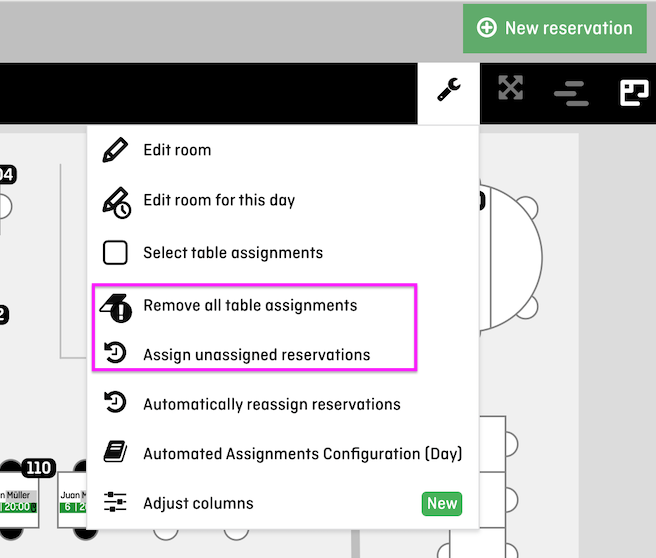
⚠️ Important:
Removing table assignments will also clear manually assigned reservations.
💡 Benefit:
You receive a completely recalculated plan based on your current settings – fast, consistent, and without manually moving individual reservations.
A common operational scenario is short-term replanning:
-
from terrace to indoor area (for example due to weather changes)
-
or from indoor area to terrace