
With aleno’s Voucher Store, you can sell digital vouchers directly through your own website or create them manually in the aleno backend — fully integrated into aleno including delivery and voucher management.
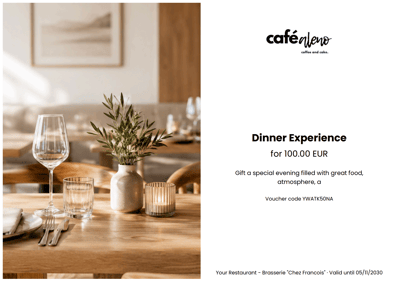
This allows you to create additional revenue opportunities, strengthen your brand, and offer your guests an easy way to gift restaurant experiences.
Overview
- Requirements
- Setting up the Voucher Store
- Creating Vouchers manually
- How the purchase process works for your guests
- Redeeming Vouchers
- Voucher Management & Overview
- Tips for successful voucher sales
- Frequently Asked Questions
1. Requirements
To use the Voucher Store, the following requirements must be fulfilled:
1.1 Set up alenoPay
alenoPay must be connected to one of our supported payment providers. You can find more information about the setup here.
1.2 Activate the Voucher Store
The “Voucher Store” feature must be activated for your restaurant. Please contact our support team for activation:
→ support@aleno.me
2. Setting up the Voucher Store
The setup can be found under:
Settings → aleno Pay → Vouchers
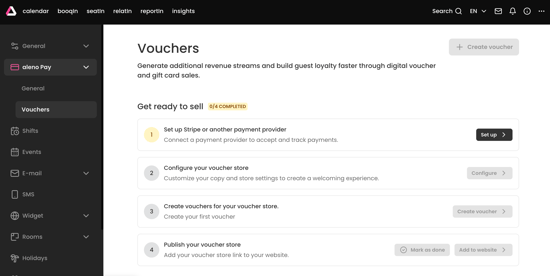
The setup consists of three simple steps:
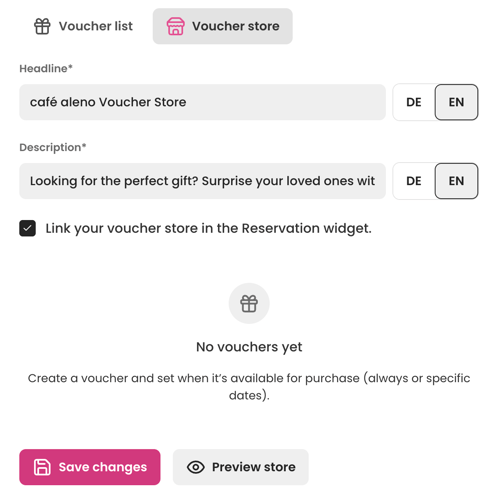
2.1 Configure the Voucher Store
Define the title and description of your Voucher Store and decide whether the Voucher Store should also be displayed directly inside the reservation widget.
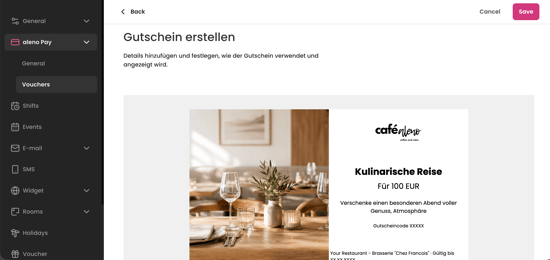
2.2 Create Vouchers
Create individual voucher templates with:
- Title
- Description
- Voucher amount
- Validity period
- Design and image
You can decide whether vouchers should always be available or only sold during specific time periods.
2.3 Publishing the Voucher Store & Selling Vouchers online
If enabled in your voucher store settings (see 2.1 ), guests can purchase vouchers directly from your reservation widget.
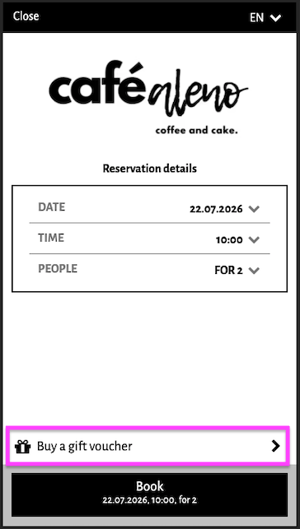
You can also share your Voucher Store directly via a link on your website, social media channels, newsletters, or any other marketing channels.
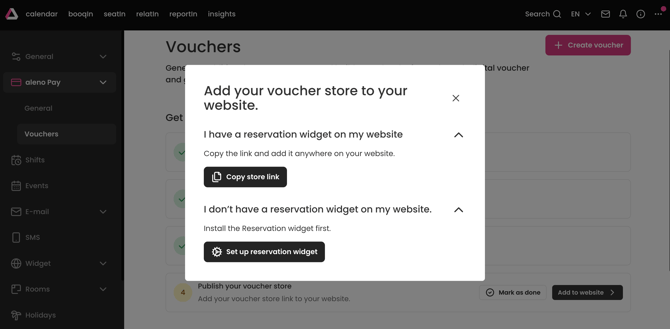
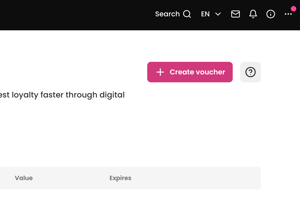
After finishing the setup, you can always reopen the pop-up containing your Voucher Store link by clicking the small question mark icon in the top right corner.
The Voucher Store uses the same URL as your reservation widget. To open the Voucher Store directly, simply append the following parameter to your reservation widget URL:
&type=voucherStore
3. Creating Vouchers manually
Besides selling vouchers through the Voucher Store, you can also create vouchers manually directly in the aleno backend. This is ideal if guests purchase a voucher on-site and pay for it directly at the restaurant.
To create a voucher manually:
- Open the Voucher Dashboard from your aleno Dashboard.
- Click the Create Voucher button in the top right corner.
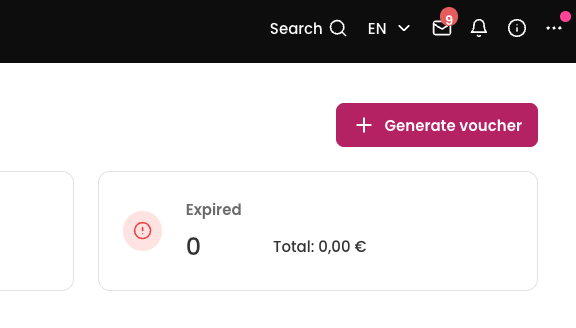
- Select the desired voucher template.
- Enter the purchaser's details:
- First name
- Last name
- Email address
- Optional: Telephone Number
- Click Create Voucher.
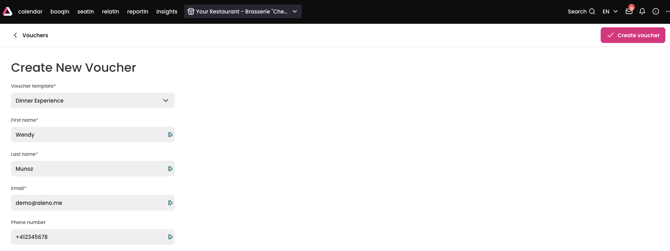
The voucher is immediately generated and automatically sent to the recipient by email.
Since the payment has already been completed at the restaurant, no online payment is required.
The voucher will also appear in the Voucher Dashboard together with all other vouchers, where it can be managed and redeemed in the same way.
4. How the purchase process works for your guests
Your guests can purchase vouchers online in just a few steps:
- Select a voucher
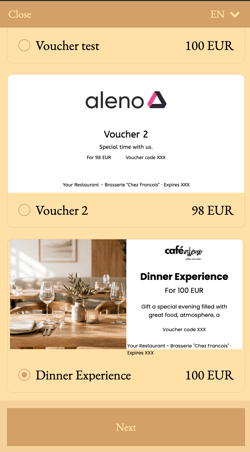
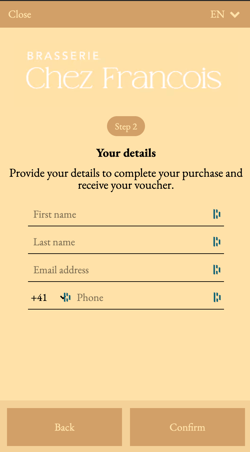
- Enter contact details
- Complete the payment
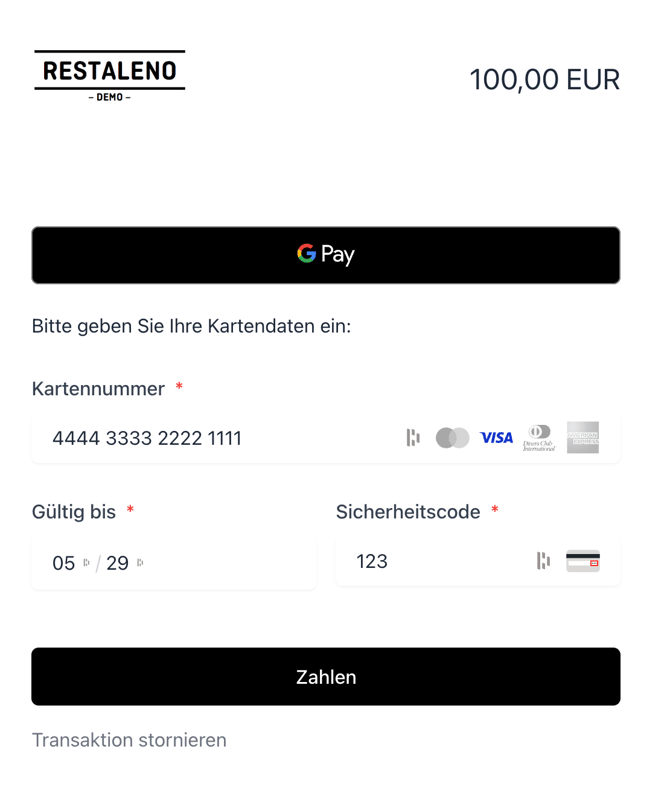
- Download the voucher directly or receive it via email
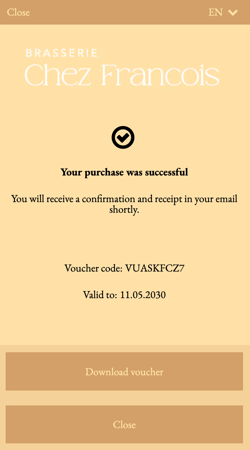
The entire process is fully digital and automated.
5. Redeeming Vouchers
5.1 Guest redeeming a voucher during the reservation process
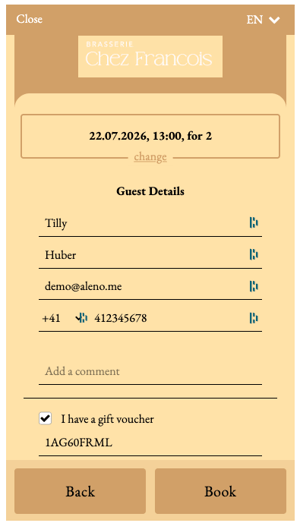
Guests can enter their voucher code while making a reservation in the reservation widget.
The voucher is automatically validated and linked to the reservation. This allows the restaurant team to see that the guest intends to use a voucher during their visit.
The voucher is not redeemed automatically at this stage. When the guest visits the restaurant, your team must redeem the voucher in the aleno backend and enter the amount that should be deducted from the voucher balance.
5.2 Guest redeeming a voucher for reservations with Sell Items
Guests can also use vouchers for reservations that include Sell Items (for example, prepaid menus or event tickets).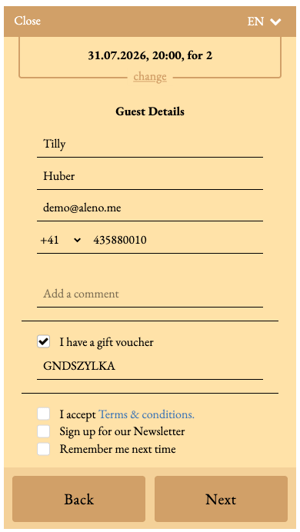
If the selected shift contains Sell Items, guests can simply enter their voucher code during the payment process. The voucher value is automatically deducted from the total amount due.
If the voucher value does not cover the full amount, the guest only needs to pay the remaining balance online.
5.3 Redeeming vouchers in the aleno backend
Your team can also redeem vouchers directly in the aleno backend.
There are two ways to redeem a voucher:
Redeeming a voucher within a reservation
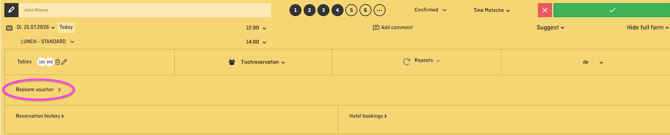
Open the reservation and enter the voucher code in the reservation form under "Redeem voucher". You can then choose whether to redeem the full voucher value or only a partial amount.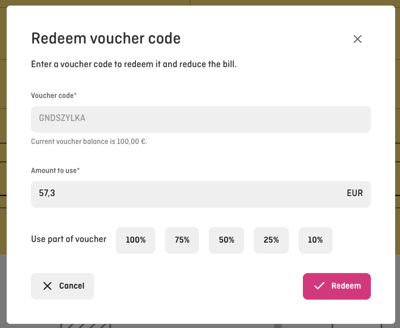
The remaining voucher balance is automatically updated and documented.
Redeeming a voucher from the Voucher Dashboard
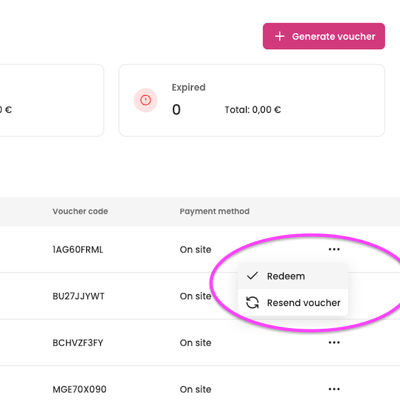
You can also redeem vouchers directly from the Voucher Dashboard.
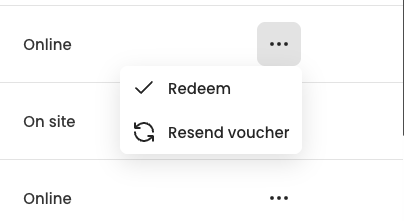
Locate the voucher, click the three dots at the end of the row, and select Redeem Voucher. This is particularly useful if you want to redeem a voucher without first opening the reservation.
6. Voucher Management & Overview
You can find the Voucher Dashboard on your aleno Dashboard. Here you can manage all vouchers sold through the Voucher Store as well as vouchers created manually.
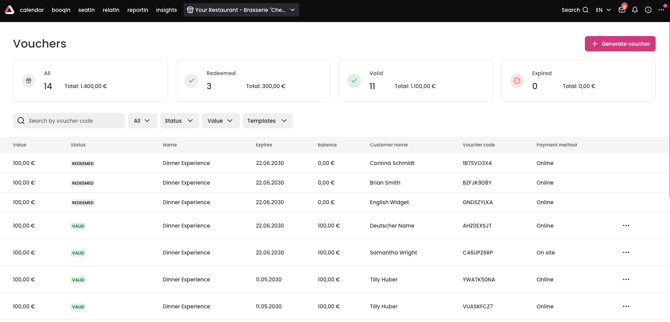
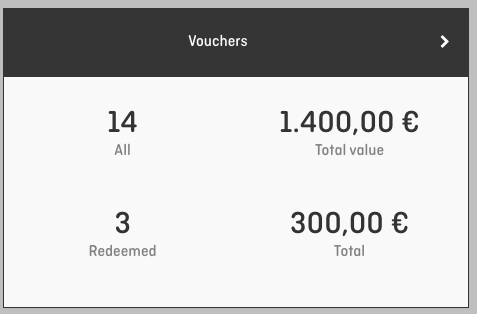
Inside the Voucher Dashboard, you can see an overview of:
- sold vouchers
- redeemed vouchers
- open voucher balances
- expired vouchers
Additionally, vouchers can be filtered by status, amount, or voucher name.
For each voucher, click the three dots at the end of the row to open the available actions. Depending on the voucher status, you can redeem the voucher or resend it to the customer.
7. Tips for successful voucher sales
Many restaurants successfully use vouchers for:
- Christmas & holidays
- Valentine’s Day
- birthdays
- special menus or events
- last-minute gifts
Voucher titles with an emotional touch often perform particularly well, such as:
- “Dinner Experience”
- “Culinary Journey”
8. Frequently Asked Questions
Can vouchers have an expiration date?
Yes. When creating a voucher, a validity period can be defined.
Please also make sure to follow the legal requirements in your country regarding minimum voucher validity periods.
Can vouchers only be sold during specific periods?
Yes. Vouchers can either be permanently available or only available during a specific date range.
Will guests automatically receive the voucher?
Yes. After a successful payment, the voucher is automatically sent via email and can additionally be downloaded directly.
Can I manually create vouchers that were paid directly at the restaurant?
Yes. You can easily create vouchers manually via the vouchers dashboard and send them to the buyer via email automatically.
Can guests preview the voucher in its original size before purchasing?
No. The voucher store currently shows a thumbnail preview. A full-size preview of the final voucher is not available at the moment.
In which format do guests receive their voucher?
After purchase, guests receive their voucher as a PDF and can download it directly or receive it by email.
The voucher is currently generated in a fixed B5 format. It is not possible to choose between different paper sizes such as A4 or A5.
Can I use my own printed gift cards?
Yes. If you would like to use your own individually designed gift cards, you can create the voucher manually via the Voucher Dashboard and then add the generated voucher code to your own gift card.
This allows you to use your restaurant's existing or professionally printed gift cards while still managing and redeeming the voucher in aleno.
Can I sell a voucher directly in the restaurant and hand it to the guest?
Yes. Vouchers can be created manually via the Voucher Dashboard. This is particularly useful when a guest purchases a voucher directly at the restaurant and pays on site.
Once the voucher has been created, an individual voucher code is generated. You can either use the voucher generated by aleno or add the code to your own gift card.
You can find more information under “Creating vouchers manually”.
Can guests buy multiple vouchers at once?
Currently, only one voucher can be purchased per checkout.
If a guest would like to buy three vouchers, for example, they need to complete the purchase flow three separate times. These are therefore also treated as three separate payment transactions.
Is there an example of what the voucher looks like for the guest?
Yes. You can find an example voucher at the beginning of this article.
The exact appearance of the voucher depends, among other things, on the voucher template you create and the image you upload.
Can I create a large number of vouchers at once, for example 100 vouchers as corporate Christmas gifts?
Bulk creation of vouchers is currently not supported.
For example, if a company requires 100 individual vouchers, these cannot currently be created in one single process and generated as a batch.
If this use case is relevant for your restaurant, please contact our team. Depending on demand, we can evaluate possible future enhancements to this feature.