
Reservation comments are one of the most important tools for smooth service operations. They ensure that special requests, agreements, and notes are recorded exactly where they are needed. Directly on the reservation.
Kurzgliederung
1. Where can I see reservation comments?
Reservation comments are visible in several places during daily operations, depending on the service situation.
1.1 In BooqIn (list view)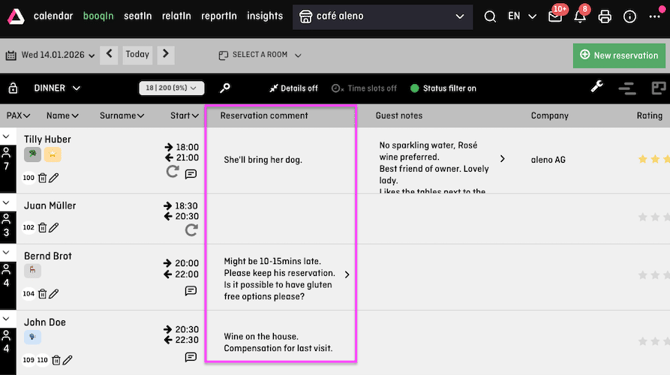
-
In the “Reservation comment” column
-
Especially helpful for
-
daily preparation
-
start of a shift
-
groups and events
-
💡 The column view in BooqIn can be customized. You can find more information here.
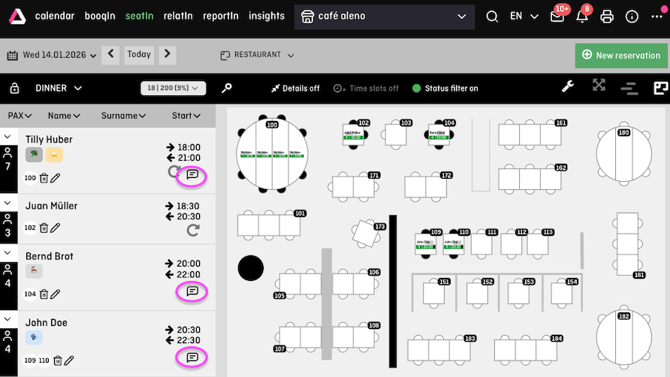
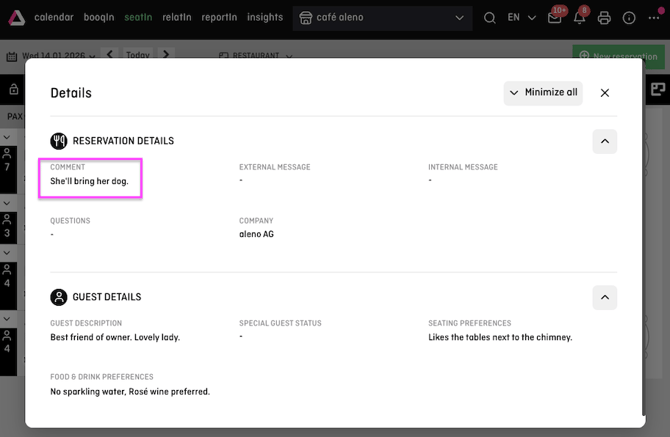
1.2 In BooqIn and SeatIn via the speech bubble icon
-
The speech bubble icon indicates that a comment is available
-
With one click, the content is immediately visible
-
Ideal for live service operations
1.3 In Print, PrintBeta and ReportIn
-
Reservation comments can also be shown in prints and reports
-
For example for
-
service briefings
-
daily lists
-
events without tablets in use
-
2. Where can I add reservation comments?
Reservation comments can be added when creating new reservations or to existing reservations in BooqIn or SeatIn.
This is done in the mini form of the reservation.


The text field can be filled in directly or expanded using the two small arrows.
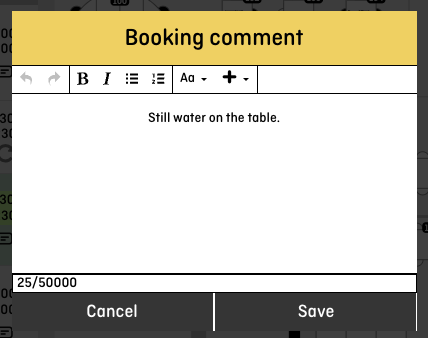
The expanded field allows:
-
better readability
-
text formatting
-
adding attachments
3. How can I edit reservation comments?
-
Comments can be edited or extended at any time
-
Changes are immediately visible to the team
-
Especially helpful for short-term updates during service
Note: Existing comments can also be deleted. Please make sure not to remove any information that is still needed.
Changes to reservation comments can be tracked in the reservation history.
4. Adding attachments to reservations
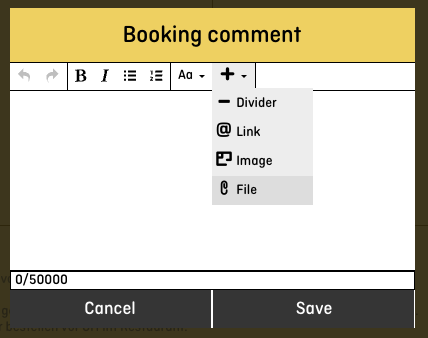
You can also add attachments to reservation comments, such as PDFs, schedules, event documents, or function sheets.
To do this, expand the comment field using the two arrows. There you can use the plus icon to add files.
💡 Practical tip:
Instead of uploading files, you can use links to cloud documents. This ensures the content stays up to date and accessible to everyone.
5. Reservation comment vs. guest note
In daily service operations, it is important where information is stored, so it appears in the right place later on.
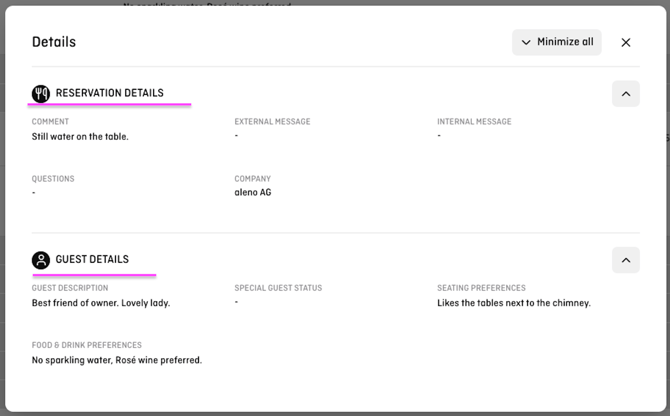
Reservation comment
-
refers to a specific visit
-
applies only to this single reservation
-
suitable for occasions, seating preferences, or internal notes
Guest note
-
belongs to the guest profile
-
remains visible for future visits
-
suitable for recurring or long-term information
Rule of thumb
Visit-related equals reservation comment
Long-term equals guest note
6. Internal vs. external reservation comments
Not every comment comes from the same source. For service teams, it is important to know who added the information and what it is intended for.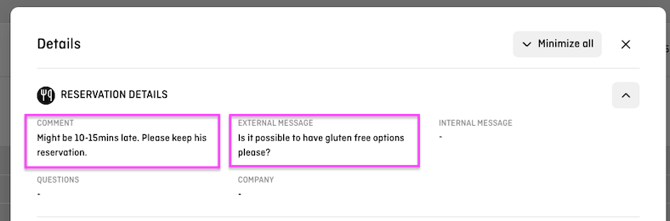
Internal reservation comments
-
are added by the team
-
are visible internally only
-
intended for service, kitchen, and operational notes
External reservation comments
-
are entered by the guest during the booking process in the widget
-
for example allergies, occasions, or special requests
-
the comment field can be enabled or disabled in the widget settings
Settings > Widget > Customization > Comment field
Note: Existing guest comments cannot be deleted.