
Table of Contents
- What Are Guest Profiles in aleno?
- How Guest Profiles Are Created Automatically (Widget)
- How to Create Guest Profiles Manually
- How Long Guest Profiles Are Stored
- How to Delete Guest Profiles
- FAQ
- Related Articles
1. What Are Guest Profiles in aleno?
Guest profiles store all relevant information about your guests — from contact details to preferences, tags, loyalty indicators, and past visit history.
They are created:
- Automatically when a guest books online via the widget
- Manually when you add a new reservation or when you create a contact in RelatIn
- Continuously refined when new guest data comes in
Keeping guest profiles complete helps you communicate effectively, offer personalised service, and reduce mistakes.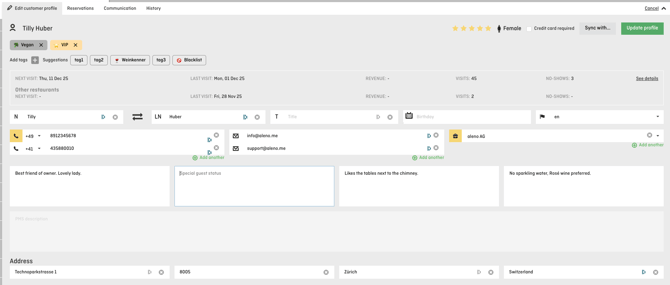
2. How Guest Profiles Are Created Automatically (Widget)
Whenever a guest completes a reservation through your online widget, aleno checks whether this person already exists in your database.
Which fields are required on the widget?
Guests must enter:
- First name
- Last name
- Email address
- Phone number
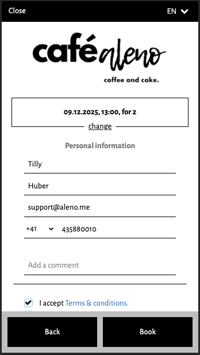
These fields are mandatory for every online reservation.
How aleno identifies existing guest profiles
Under Settings → Widget → Customizing → Contact creation, you can choose how strictly the system should match incoming data to existing guest profiles. You can select one of three matching options (all case-insensitive):

1. Match phone & email
- If both match an existing profile, that profile is reused — even if the name differs.
2. Match phone OR email + first name + last name
- All three conditions must match to identify an existing profile.
3. Match phone + email + first name + last name
- Strictest matching: all four fields must be identical.
If no match is found, a new guest profile is created automatically.
3. How to Create Guest Profiles Manually
You can add new guest profiles in two ways.
A) Create a profile directly in RelatIn
- Go to RelatIn
- Click Create Contact
- Fill in the guest information you have
- Save the profile
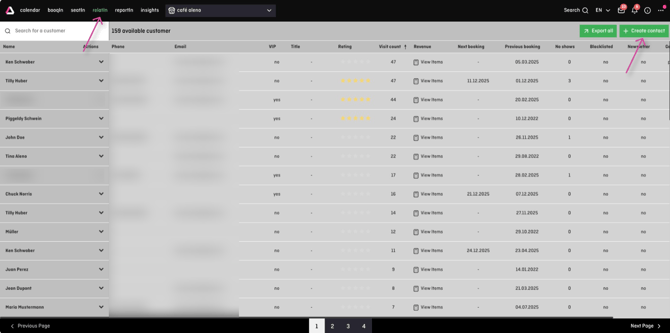
B) Create a profile while entering a new reservation
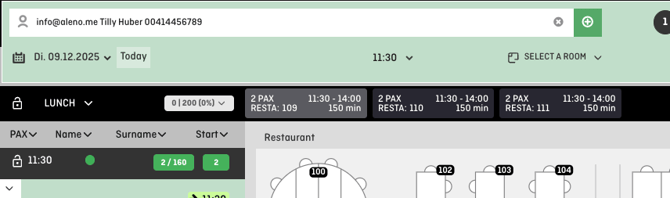 When you create a reservation using BooqIn or SeatIn, and enter guest details into the mini-form:
- First name
- Last name
- Phone number
- Email address
…aleno automatically places the information into the correct fields and the system checks for an existing guest profile.
If you don’t select an existing profile from the dropdown, a new guest profile is generated.
The order in which you out information into the mini form, is not relevant for the system. It could be for example
- phone number, email address, last name
or
- first name, last name, email address
The system will recognize which information will go into which field and create the guest profile accordingly.
Alternatively you can also click on the little green "plus" icon at the end of the line and put the guest details into the fields manually.
Mandatory fields for manual reservations
By default, only a last name is required to complete a reservation.
If needed, your restaurant can request stricter requirements (contact support).
We recommend always entering:
- Name
- At least one contact detail (email or phone)
This helps avoid duplicates and ensures accurate communication.
4. How Long Guest Profiles Are Stored
By default, guest profiles are stored indefinitely unless you configure an automatic deletion period.
You can adjust storage settings under:
Settings → Guest data
Here you’ll find:
- Storage period (days)
- Automatic deletion of customer data (days)
These settings support compliance with EU GDPR and the Swiss FADP.
For legal requirements and detailed explanations, please refer to:
➡️ Data Privacy Policy (GDPR & FADP)
5. How to Delete Guest Profiles
Guest profiles can be deleted manually at any time (considering the configured storage period)— provided there are no future reservations linked to the guest.
How to delete a guest profile
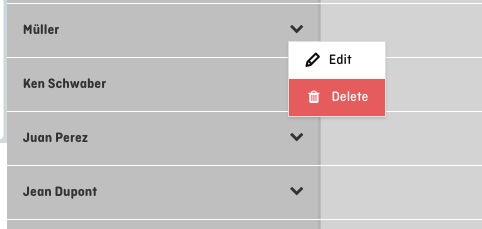
- Go to RelatIn
- Search for the guest
- Click Delete in the actions menu
- Confirm the deletion
What happens when a guest is deleted?
-
All personal data is deleted immediately
-
All past reservations are anonymised
-
Analytics and reporting remain unaffected
Who can delete guest profiles?
All users with access to RelatIn (e.g. service users) can delete profiles.
For more detailed instructions on data deletion, visit:
➡️ Data Privacy Policy article
6. FAQ
Will the system create duplicates?
Only if the matching rules in the widget or backend do not find an existing contact.
For automatic clutter removal, see the duplicate merging article.
Can I restore a deleted guest profile?
No. Deleted profiles cannot be restored.
What happens if a guest uses different details each time?
If the matching rules do not identify the guest, aleno creates a new profile.
You can always merge them later (see related article).
Can I delete a profile that has future reservations?
No, aleno blocks deletion until all future reservations are cancelled or reassigned.
Does editing a reservation update the guest profile?
Yes — relevant data such as name, phone, or email may update the guest profile depending on your matching settings.