
Your opening or booking times are changing?
For example:
-
From January onward, Monday becomes a closing day.
-
From January onward, you will additionally open for lunch.
-
Certain shifts need to be shortened, extended, or removed entirely.
In this article, we guide you step by step through how to adjust existing shifts—and what to keep in mind if reservations already exist within the affected time periods.
1. Adjusting shifts: future changes
If your booking or opening times only change from a specific date onward, you can simply work with a copied shift in aleno. This allows the system to clearly separate the old and new rules—without requiring you to rebuild all configurations from scratch.
When does it make sense to adjust an existing shift directly?
Only when you want these changes to take effect immediately.
However, for changes to your booking times, it’s best to set them up in aleno in advance, so guests can already make future reservations according to the correct configuration.
Follow these steps:
Step 1: Copy the existing shift
-
Go to Settings → Shifts
-
Under Current Shifts, select the shift you want to change from a specific future date.
-
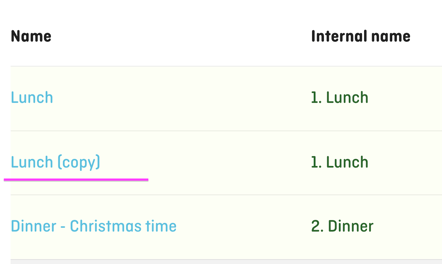
Create a duplicate by clicking Actions → Copy.

-
A new copied shift will now appear in your shift overview.
Step 2: Define the validity period of the new shift
-
Open the newly created shift copy.
-
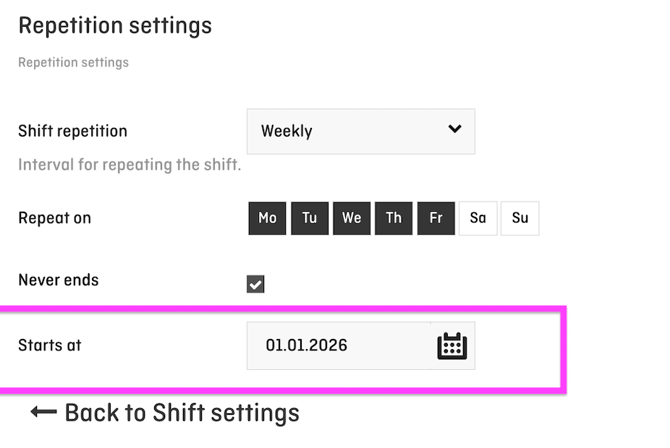
Go to Repetition Settings → Advanced Settings.
-
Under Valid from, set the date from which the new booking times should apply, e.g. from January 1, 2026.
Step 3: Define the new booking times
Within the newly created shift, you can now set up the new days and times.
Here you can:
-
Activate additional weekdays (e.g. opening for lunch on Wednesdays starting in January)
-
Deactivate weekdays (e.g. Monday becomes a closing day)
-
Adjust start or end times
-
Modify slots in the advanced capacity settings (e.g. allow bookings only every 30 minutes)
-
or adjust any other setting within the shift.
Important: Rename the new shift internally so it’s easy to identify.
Also, be sure to remove the automatically added "Copy" from the shift name!
Example for internal shift name: “Dinner Shift from January 2026”.

Step 4: End the old shift
Now the old shift needs to be configured to automatically stop on the transition date.
-
Open the original shift.
-
Go to Repetition Settings.
-
Under From/To, enter an end date, e.g. 31 December 2025.
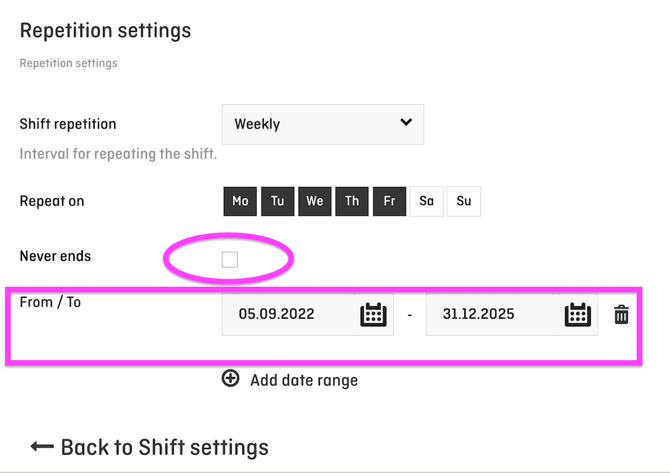
This ensures the system switches seamlessly from the old shift to the new one.
2. What happens to existing reservations?
When shift times change, aleno automatically checks whether existing reservations can be assigned to the new shift.
There are two possible scenarios:
Option 1: Automatic assignment (default case)
-
Reservations that fall within the new time windows are automatically moved to the new shift.
-
No further action is required.
Tip for verification:
-
Check the “Reservations without shifts” dashboard — this list should be empty (0).

-
or run a few spot checks in BooqIn / SeatIn.
Option 2: Manual assignment required
In the following cases, automatic assignment may fail:
-
The reservation falls outside the new time ranges.
-
The shift logic has changed significantly (e.g., a day has been removed).
-
The reservation time no longer fits the updated capacity slots.
If aleno cannot automatically assign certain reservations:
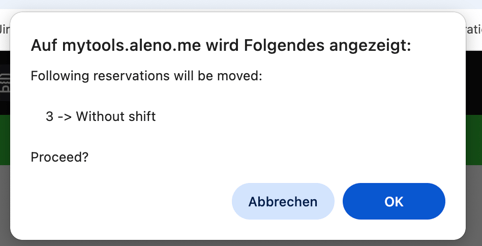
- The system will notify you in a pop-up when saving the shift settings.
You can confirm this message by clicking OK.
-
They will then appear in the dashboard under “Reservations without valid shifts.”
- There, you can reassign them individually or correct them in bulk.
- Click on “Reservations without valid shifts” to view all affected reservations in the list view.
- Select a single reservation by clicking on it.
- Check whether it should appear in the new shift based on its time.
- If needed, change the preselected shift via “More.”
- Save the reservation.
Bulk Edit:
If you want to assign multiple affected reservations to the correct shift at once, you can use the Bulk Edit feature.