
Overview
When it makes sense to exclude tables
With table exclusions, you deliberately define that certain tables are not assigned automatically.
This is especially useful when you want to keep tables available for specific purposes, for example:
-
walk-ins or spontaneous guests
-
regular guests or VIPs
-
special preparations (decorations, technology, special requests)
-
weather-dependent areas such as terraces or gardens
-
maintaining operational flexibility during busy periods
Attention: Excluded tables can still be assigned manually at any time.
How table exclusions work in general
Automatic table assignment only considers tables that are not excluded.
Key principles:
-
exclusions can be time-based or all day
-
exclusions can be set on restaurant, shift, or day level
-
the restaurant level is always the base
-
shift and day levels refine these settings
Excluding tables on restaurant level
On restaurant level, you define exclusions that apply to all shifts.
How to proceed:
-
Open Settings > General > Automatic Table Assignment
-
Expand the section Table exclusions
-
Enter the table numbers to be excluded
-
single table:
105 -
multiple tables:
105,108,110 -
ranges:
110–135
-
-
Optional: Add conditions, for example:
-
Time ranges
→ Table 105 blocked only between 3:00–4:00 pm -
Shift capacity
→ Table 106 blocked only when occupancy is below 50%
-
-
Don’t forget to save
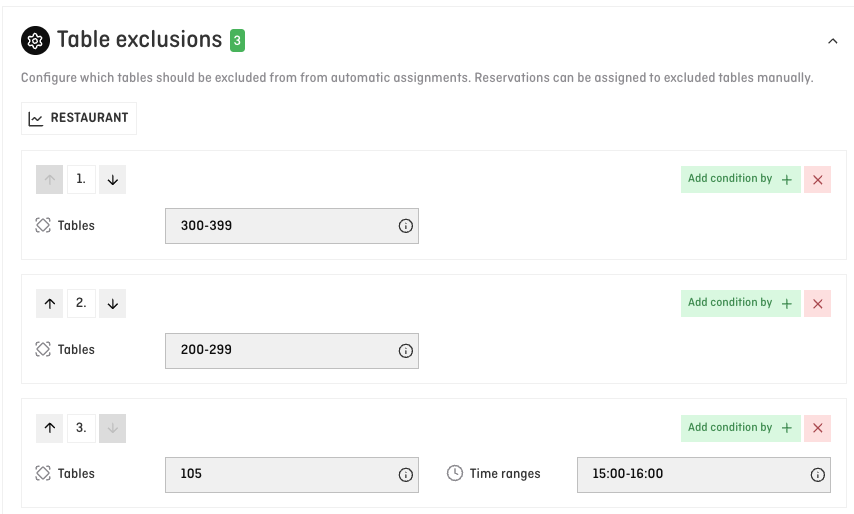
💡 Tip: Use restaurant-level exclusions for tables or areas that should generally not be assigned automatically (e.g. regulars’ table or terrace).
ℹ️ Note: It is recommended to group tables by area on restaurant level.
For example:
-
110–135 in one row
-
230–250 in another row
This makes fine-tuning much easier later on shift and day level, without having to rebuild the entire configuration.
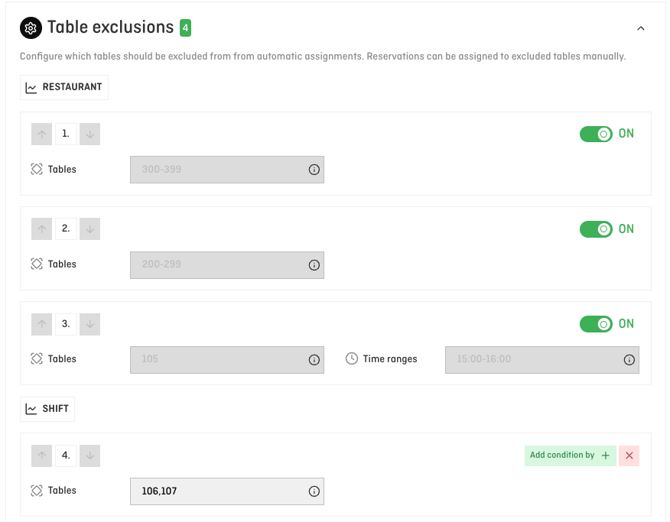
Excluding tables on shift or day level
Sometimes you need more flexibility – for example for a specific shift or a single day.
Typical use cases:
-
blocking tables for an event
-
short-term changes in the room layout
-
weather-dependent activation of additional areas
Shift level
-
Open the desired shift in the settings
-
Go to the automatic table assignment settings
-
Add or override table exclusions
-
Save
Day level
-
Open the relevant day in seatIn
-
Open the day configuration for table assignment
-
Exclude tables for that day or remove existing exclusions
-
Save and reassign reservations if needed
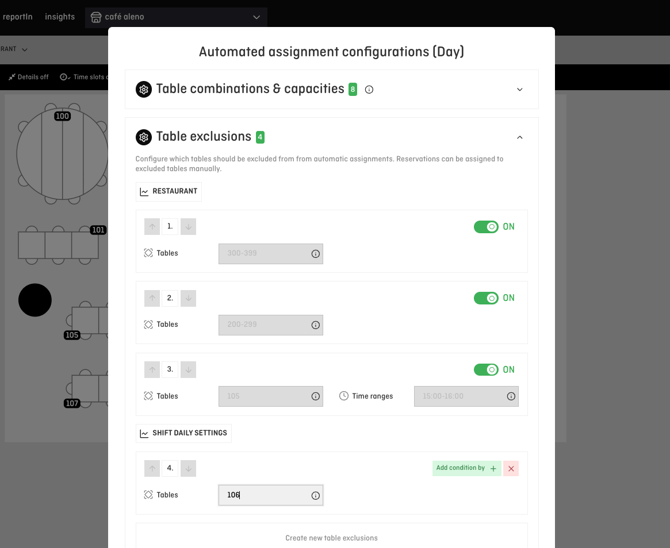
ℹ️ Note: Day-level settings add to or override the restaurant level for the selected day only.
Practical examples, seatIn display & common pitfalls
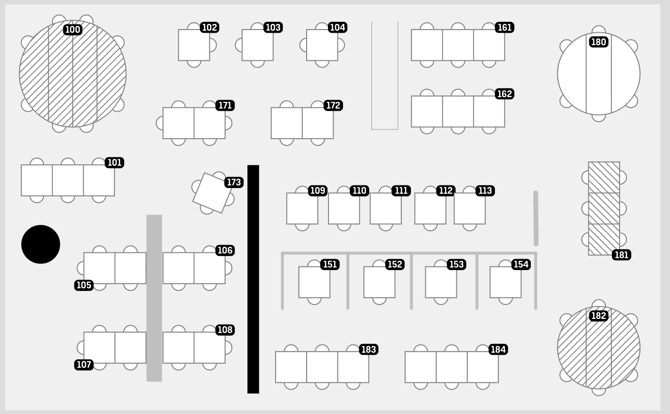
How excluded tables are displayed in seatIn
-
Excluded tables are shown with hatching in seatIn
-
They are not considered by automatic table assignment
-
Manual assignments are still possible
Example 1: Keeping a table free for walk-ins
A central 4-seat table is excluded between 6:00–8:00 pm.
It remains available for spontaneous guests but is not assigned automatically.
Example 2: Managing a terrace strategically (recommended approach)
-
-
Terrace tables are excluded by default on restaurant level
→ No automatic reservations are accepted for the terrace -
This keeps operations stable and independent of weather
-
If good weather is confirmed at short notice:
-
remove the exclusions on day level
-
activate the terrace only for that day
-
reapply automatic table assignment
-
-
Terrace operations: Activating additional areas at short notice