Overview
Introduction
With Call to Book, incoming phone calls are displayed directly in My Tools. Your team can immediately see who is calling, check existing reservations, and create a new reservation quickly. This helps you handle phone reservations more efficiently, reduce manual input errors, and recognize returning guests instantly — especially during busy service.
How it works
When a guest calls your restaurant:
-
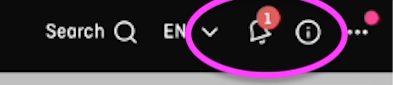
The notification icon in My Tools starts moving.
-
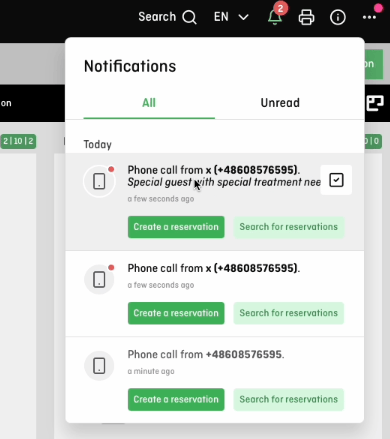
Click the notification icon to open the call details.
-
The notification shows:
-
Phone number
-
Guest first and last name (if known)
-
Short description (if available)
-
Time of the call
-
Two buttons:
-
Create a Reservation
-
Search for Reservations
-
-
The Create a Reservation button is also available inside the search view, so you can directly create a new reservation from there.
What happens in different scenarios?
Call to Book automatically adapts depending on the phone number.
1. Unknown phone number
If the number does not exist in your system:
-
Search for Reservations → No results
-
Create a Reservation → Opens the reservation form with the phone number pre-filled
2. Existing and unique phone number
If the phone number belongs to exactly one guest profile:
-
Search for Reservations → Shows existing reservations (if any)
-
Create a Reservation → Opens the reservation form with the correct guest profile already suggested
3. Existing but not unique phone number
If multiple guest profiles share the same phone number:
-
The notification looks like an unknown number
-
Search for Reservations → Shows all reservations linked to this number
-
Create a Reservation → Opens the reservation form with multiple guest profiles suggested
You can select the correct guest and continue immediately.
Configuration
1. Activate the feature
Call to Book must first be activated by aleno.
👉 Please contact our Support team to enable the Call to Book integration for your restaurant.
Once activated, you will receive a unique URL.
This URL must be entered into your phone system (phonebox) to connect it with aleno.
If you are unsure how to configure your phone provider, please contact your phone system provider directly.
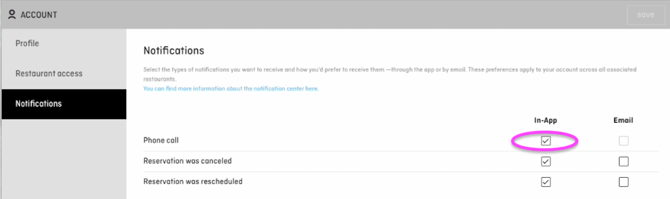
2. Turn on phone call notifications (per user)
Each restaurant user must activate phone call notifications individually.
-
Go to Settings → Account → Notifications
-
Enable the checkbox Phone Call
-
Save your changes
Only users with this notification enabled will see incoming call alerts.