
Übersicht
Assign preferred tables deliberately and depending on the situation
Conditions make table priorities flexible.
You don’t just define which table is preferred, but also when it should be used.
Three particularly practical use cases:
-
Reserve preferred tables for specific guests
For example, use window tables or favourite tables specifically for VIPs, regulars or hotel guests – without blocking them for everyone else. -
Prioritise table combinations only when they are really needed
For example, give larger combinations priority only at higher occupancy levels, so single tables are used first. -
Seat guests at the same table whenever possible
For example, automatically place regular guests at their preferred table without manual intervention.
Configuring table priorities with conditions – step by step
-
Open Settings > General > Automatic Table Assignment.
-
Scroll to the section Table priorities.
-
Click Create new.
-
Enter the desired table or area.
-
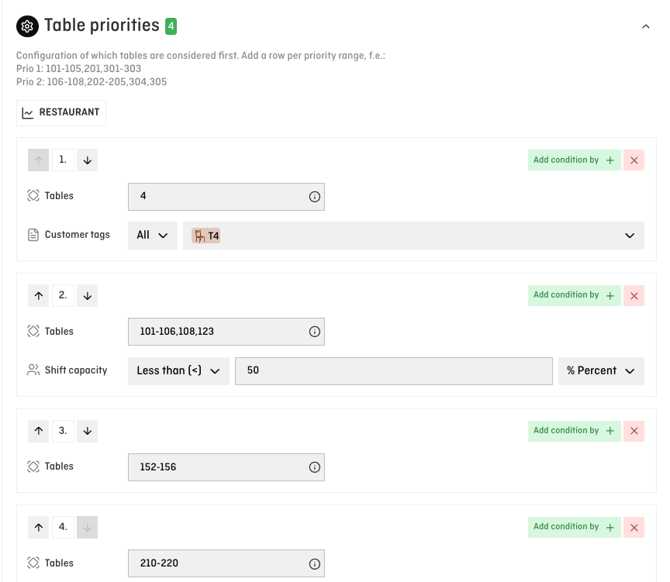
Add a condition:
-
Guest tag (e.g. VIP, regular guest)
-
Shift capacity (e.g. from 80% occupancy)
-
-
Arrange the priority in the correct order (top = higher priority).
-
Click Save in the top right corner.
ℹ️ Note:
A table priority only applies if its condition is met. Otherwise, the system selects the next suitable table.
Controlling table combinations through their order
Not every prioritisation needs to be done via table priorities.
In the section Table combinations and capacities, the order of entries already acts as a prioritisation:
-
Entries higher up are used first.
-
Entries further down are only used later.
This allows you to:
-
Place single tables deliberately at the top
-
Move table combinations further down
Result:
-
Single and smaller tables are assigned first.
-
Larger combinations remain available longer and are used later.
💡 Tip:
This approach is ideal if table combinations should generally be secondary – without adding extra conditions.
Seating guests at the same table whenever possible
If guests should regularly be seated at the same table, this can be reliably handled using guest tags.
Example: A regular guest should preferably always be seated at Table 4.
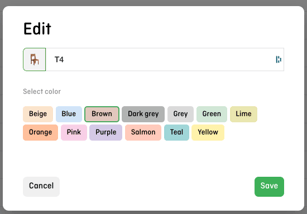
Step 1: Create a guest tag
-
Go to Settings > General > Guest tags
-
Create a new tag, e.g. "Table 4"
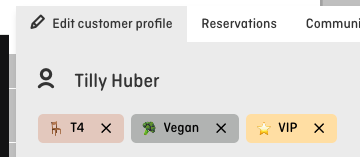
Step 2: Assign the guest tag
-
Open the guest’s profile
-
Assign the tag "Table 4"
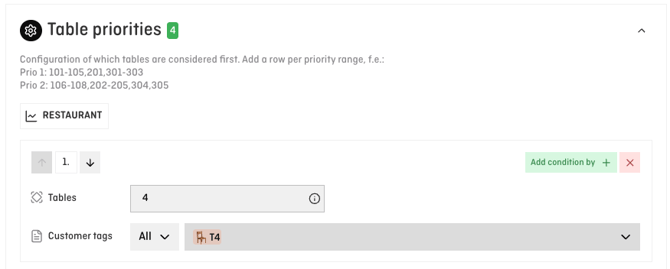
Step 3: Create a table priority
-
Open Settings > General > Automatic Table Assignment
-
Create a new table priority for Table 4
-
Condition: Guest tag = “Table4”
-
Place this priority near the top
-
Don’t forget to Save
Result:
-
Reservations for this guest are automatically assigned to Table 4 – if the table is available.
-
Other reservations are not affected.
💡 Tip:
Instead of “Table4”, you can also use more neutral tags such as “Window seat” or “Regular guest” and assigna range of suitable tables.
Common questions and pitfalls
Why isn’t a table selected despite having a priority?
→ The condition is not currently met, or the table is not available at that time.
Can I combine table priorities and the order of table combinations?
→Yes. They work very well together: order for the basic logic, priorities for specific exceptions.
Is this suitable for hotels / PMS integrations?
→At the moment, it is not yet possible to automatically place in-house guests from an active PMS integration into specific areas.
However, you can manually assign guest tags such as “Regular guest” and create conditional table priorities based on those tags.
ℹ️ Note:
In practice, it’s helpful to define clear internal rules for guest tags (e.g. “Hotel guest”, “Regular guest”, “VIP”) and apply them consistently across the team.