
Quick overview
Why are there different automation modes?
The automation mode defines how strongly aleno assigns reservations to tables automatically – or whether the final decision always stays with you.
Depending on your operation, daily workload, and desired level of control, you can choose the mode that best fits your setup.
The underlying table rules (capacities, combinations, exclusions, priorities, etc.) remain the same in all modes.
Basic rules (important to understand)
ℹ️ These principles always apply:
-
The restaurant level is the foundation of all settings.
-
Shift settings can refine or extend these rules, but always build on the restaurant level.
-
Mode 1 is always active.
-
If you select Mode 2 or Mode 3 on restaurant level, it automatically applies to all shifts.
Automation modes compared at a glance
| Topic | Mode 1 | Mode 2 | Mode 3 |
|---|---|---|---|
| Automatic table assignment | ❌ No (suggestions only) | ✅ Yes, if possible | ✅ Yes, mandatory for online reservations |
| Acceptance of online reservations | Based on shift online capacity settings | Based on shift online capacity settings | Only if a suitable table is available |
| Level of automation | Low | Medium | High |
| Typical manual effort | High | Medium | Very low |
| Best suited for | Maximum control | Flexible quota management | Best possible automation |
ℹ️ Note:
Table rules (capacities, combinations, exclusions, priorities, etc.) apply equally in all modes. The mode only defines how consistently these rules are enforced automatically.
The three automation modes in detail
Mode 1: Manual assignment with table suggestions
In short:
aleno does not assign tables automatically, but provides intelligent suggestions.
How it works in practice:
-
You create or edit a reservation (e.g. time or number of guests).
-
In seatIn, you see up to three suitable table suggestions.
-
You decide manually which table to use.

Online reservations:
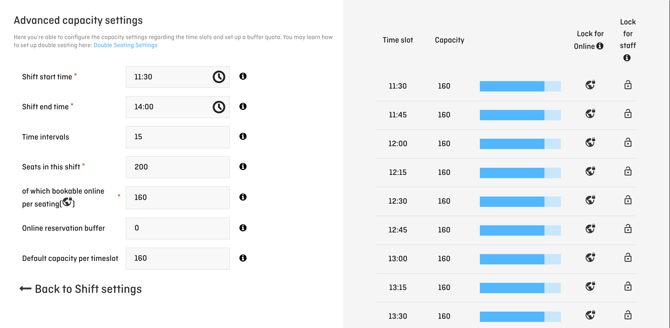
Online reservations are accepted according to the online capacity settings defined in the shift settings. Table placement is done manually afterwards.
Best suited for:
-
Restaurants that want maximum control
-
Operations with very individual seating logic
-
Teams that want guidance without automation
💡 Tip:
Ideal if you want support, but consciously make every seating decision yourself.
Mode 2: Automatically assign tables when possible
In short:
Online reservations are accepted as long as online capacity is available in the shift.
Tables are assigned automatically whenever a suitable table is available.
Key points:
-
Reservation acceptance is primarily based on the shift’s online quota.
-
Actual table assignment happens in a second step based on your table rules.
Best suited for:
-
Restaurants with clearly defined online quotas
-
Operations that want to manage online availability independently of exact table availability
-
Restaurants with regular booking volume and moderate complexity
ℹ️ Note:
This mode offers more flexibility when accepting online reservations, but may occasionally require manual fine-tuning.
Mode 3: Online reservations require an available table
In short:
An online reservation is only possible if a specific suitable table or table combination is available at the time of booking.
Consequences:
-
Every confirmed online reservation is already cleanly seated
-
No acceptance without real table availability
-
Best possible occupancy, even with complex and large table plans
Example:
A reservation for 2 guests is not accepted if only a table is available that is configured exclusively for 4 guests.
Best suited for:
-
Restaurants with high demand
-
Complex or large table plans
-
Operations that want to minimise manual intervention
💡 Classification:
Mode 3 offers the highest level of automation.
It removes most of the daily planning work while still ensuring a clear, rule-based seating logic.
At the same time:
-
Full control always remains with the restaurant
-
Manually placed reservations are never moved automatically
ℹ️ Note: Why the time selection is not shown in the widget
When you use Mode 3, the appearance of the online widget changes:
-
The guest first selects date and number of guests
-
The time selection is no longer shown on the start screen
-
Suitable and available time slots are automatically suggested afterwards
Widget with active mode 3 without time selection: 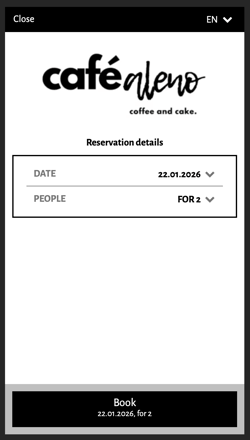
Widget with active mode 1 or 2, with time selection:
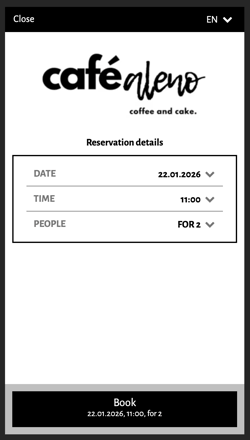
Why does this work like this?
Mode 3 is designed to optimise table utilisation.
Instead of asking guests to enter a specific time upfront, the system proposes available and suitable time slots based on your real table availability.
For the guest, the end result is the same – the path to get there is simply more efficient.
Good to know:
Many restaurants contact support asking whether the time selection can be removed from the widget.
This is only possible in combination with Mode 3, as this widget behaviour is an integral part of the automatic table assignment and cannot be activated separately.
Automatically move reservations – what does this mean?
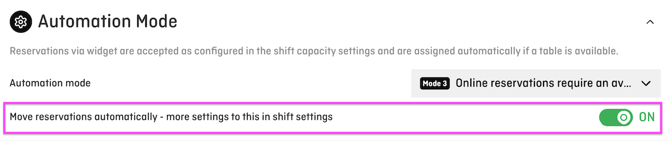
This option controls whether aleno may rearrange existing reservations in order to place additional reservations in a meaningful way.
In short:
-
When enabled, aleno may reposition reservations within your defined rules to free up capacity.
-
When disabled, existing placements remain unchanged.
📍 Detailed controls (e.g. buffers, lock times before reservation start) are configured on shift level.
⚠️ Important:
-
Manually placed reservations are never moved automatically.
-
You always stay in full control.
💡 Practical tip:
This setting is especially helpful during high demand or with varying group sizes, as it stabilises planning without forcing manual changes.
Which mode is right for you?
💡 Rule of thumb:
-
Maximum control: Mode 1
-
Balance between flexibility and automation: Mode 2
-
Best possible automation: Mode 3
ℹ️ Note:
Choosing an automation mode is a fundamental decision and should match your operating style, expected demand, and table plan complexity.
Where do I set the automation mode?
Settings → General → Automatic Table Assignment → Automation Mode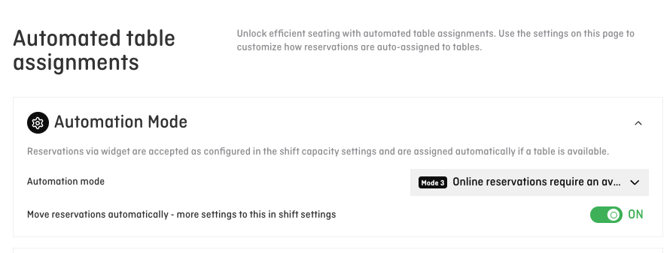
Here you select the desired mode on restaurant level.
The selection applies to all relevant shifts according to the rules described above.