
Overview:
How table capacities build on the table plan
The foundation for all table capacities is always your table plan in the room setup.
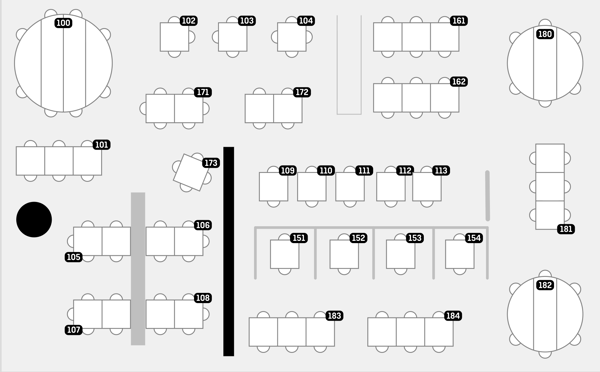
Example:
-
A table is drawn as a 4-seat table in the table plan
-
Without any further configuration, this table is used only for exactly 4 guests
By configuring table capacities, you can define additional group sizes that this table may also be used for
(for example 2–4 or 3–5 guests).
How the logic of table capacities and table combinations works
For every reservation, the automatic table assignment checks:
-
Which tables and table combinations exist?
-
Does the reservation’s group size fit into the defined capacity range?
Only tables or combinations that match the capacity range are:
-
suggested, or
-
automatically assigned (depending on the selected mode)
This logic is the same for all automation modes.
Defining table capacities (single table)
To define a capacity for one single table, follow these steps:
-
Go to Settings → General → Automatic Table Assignment
-
Open “Table combinations & capacities”
-
Click “+ Create new”
-
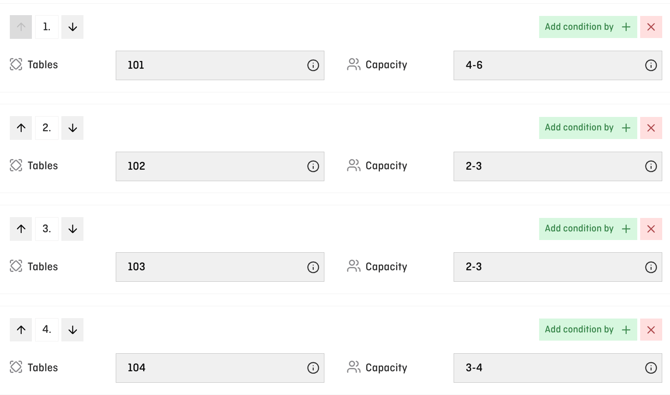
Enter one single table number (e.g.
101) -
Define the capacity range (e.g.
4-6)
⚠️ VERY IMPORTANT
Each table must be defined in its own separate row.
-
Even if multiple tables share the same capacity
-
they must not be entered together in one row
❌ Incorrect:12,13,14 → 2–4
→ this is treated as a table combination
✅ Correct:
-
Row 1: Table 12 → 2–4
-
Row 2: Table 13 → 2–4
-
Row 3: Table 14 → 2–4
Multiple table numbers in one row always mean a table combination.
Defining table combinations (multiple tables)
Use table combinations when several tables should be combined for larger groups.
Examples:
Using commas (specific combination):
-
Tables:
109,110 -
Capacity:
3–4
Using a dash (entire range):
-
Tables:
109–113 -
Capacity:
9–10
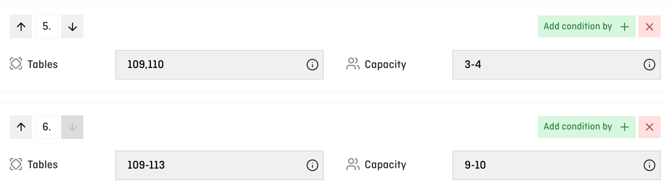 ➡️ The combination is used only for reservations that fit exactly into this capacity range.
💡 Tip:
For the initial setup, it’s usually sufficient to define:
-
the basic table capacities, and
-
the most frequently used table combinations
Additional conditions (such as time ranges or shift capacity) are only needed if you actively use them.
What happens if you don’t configure anything?
If you don’t define any table capacities or table combinations, automatic table assignment relies on two logics:
1. Table plan logic
-
A 4-seat table is used only for 4-guest reservations
-
2- or 3-guest reservations are not automatically placed on that table
2. Learning logic
-
The system learns from manual table assignments
-
If a 3-guest reservation was manually placed on a 4-seat table in the past,
the system will take this into account for future assignments
➡️ This works, but it is less predictable and less controllable than a clean capacity setup.