
Overview
Where to find day-specific adjustments in seatIn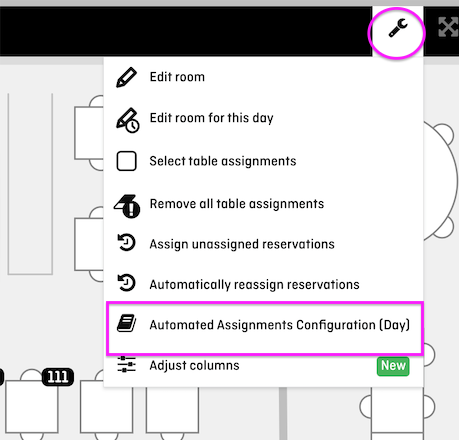
Day-specific adjustments are made directly in seatIn:
-
Open seatIn
-
Select the desired day
-
Select the affected shift
-
Open the tools / wrench icon
-
Click “Table assignment configuration (day)”
These adjustments apply only to the selected shift on that specific day.
Using and adjusting existing configurations per day
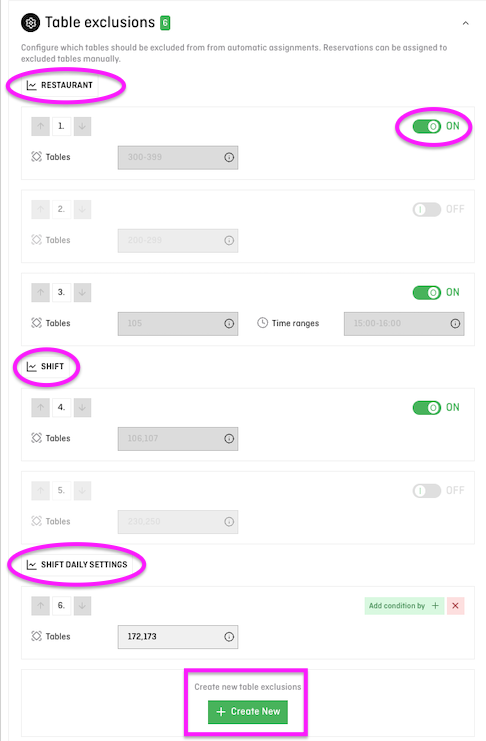
In the day-specific configuration view, all existing configurations are displayed:
-
Settings inherited from the restaurant level
-
Settings inherited from the shift level
Key points:
-
Each configuration is shown row by row
-
It is clearly visible which level (restaurant or shift) each rule comes from
-
Existing rules can be disabled for this specific day
-
Additional, purely day-specific configurations can be added
This allows you to react to special situations without changing your base setup.
Which adjustments are possible per day
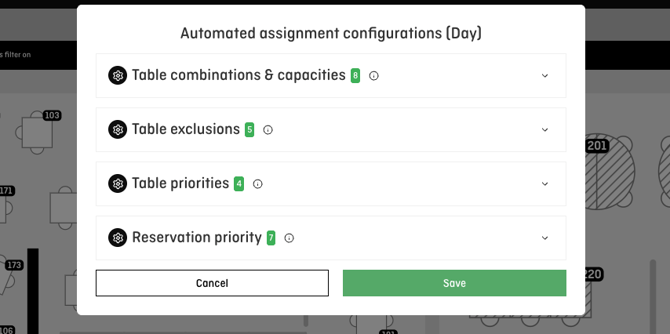
For the selected shift on that specific day, you can make the following adjustments:
-
Table capacities and table combinations
-
Table exclusions
-
Table priorities
-
Reservation priorities
⚠️ Important:
These adjustments apply only to the selected shift on the selected day.
They do not affect other shifts on the same day and are not permanent.
ℹ️ Note on existing reservations
Reservations that are already placed remain unchanged.
If you choose to reassign reservations, the system will automatically take the day-specific settings into account.
Difference between day-specific and shift-level settings
-
Shift level
Recurring logic that applies to all days of a shift. -
Day level (seatIn)
One-time, situational adjustments for a specific shift on a specific day.
💡 Rule of thumb:
Anything that happens regularly belongs on the shift level.
Anything situational or exceptional is best handled directly in seatIn.
Closing
Day-specific adjustments in seatIn give you maximum flexibility for exceptional situations.
You can react to individual days or shifts without permanently changing your proven configuration.